
Please be aware of some glitches with the loading of the first page of the event registration screen. When you first click to register for an event, if the webpage loads correctly, the course color / map selections should look like this:
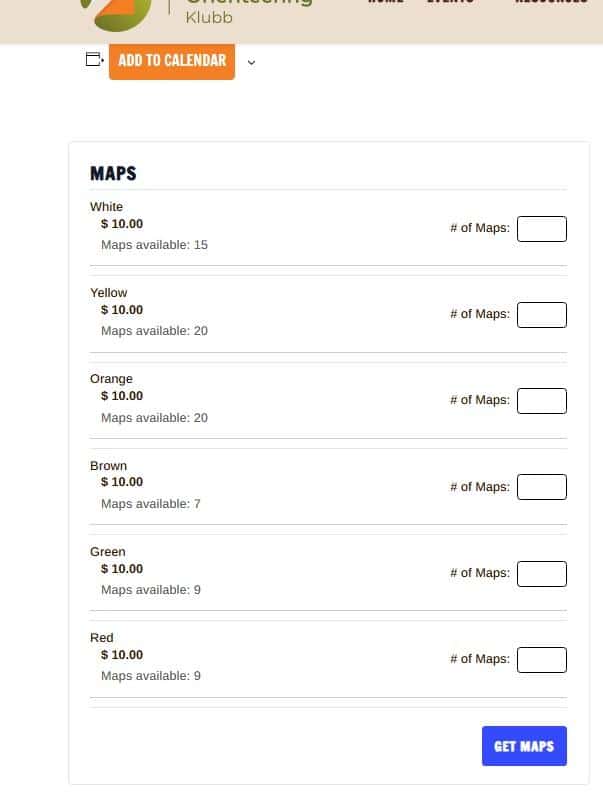
Instead, some users are seeing the course color map labels looking like this:
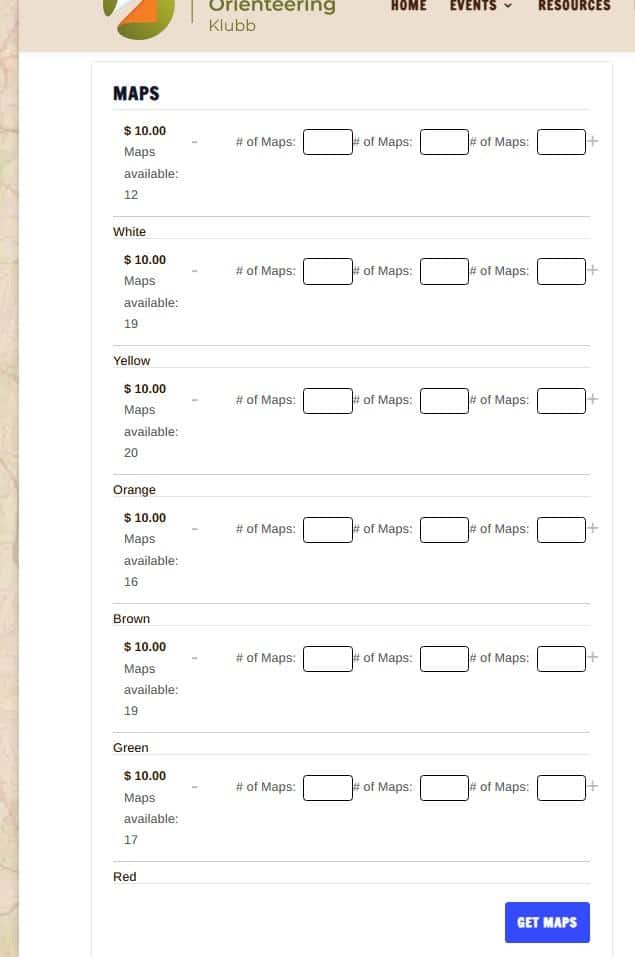
If the screen shows 3 map boxes for each row:
- Hit the refresh button on your browser (which may resolve issue). If it does, proceed as usual.
If refreshing doesn’t correct:
- Enter the number of maps you want for the course in any of the 3 boxes (it then appears in all three boxes) for the course color shown below that row. For example, in the screen shot above, as you can see the Red label at the bottom, so to order Red maps, use the order boxes above the Red map color. (Same goes for the rest of the colors.)
- Click “Get Maps”
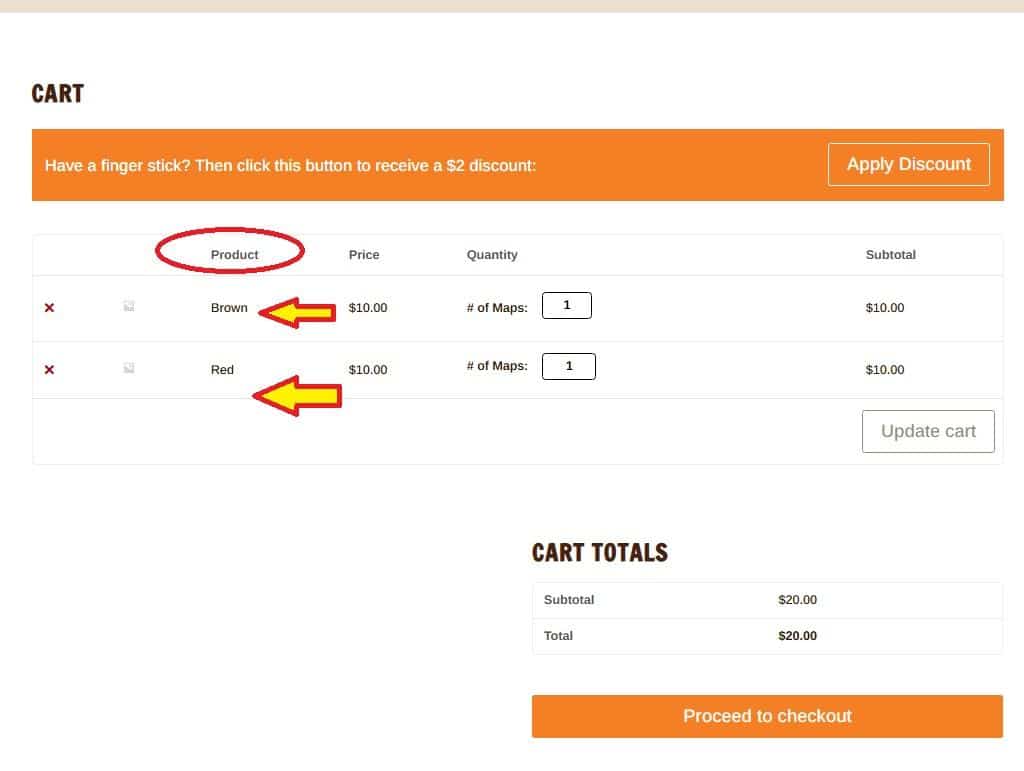
When you click the Get Maps button, the Cart page appears where you can see which color is being purchased.
Under the product column, you should see your course selections listed.
If the courses are incorrect, hit the red X at the far left of the row to delete that selection, and then hit the back button in your browser and start again.
If you still have issues and end up purchasing the wrong map, please send us an email at: [email protected] and we will work with you to correct your map order.